

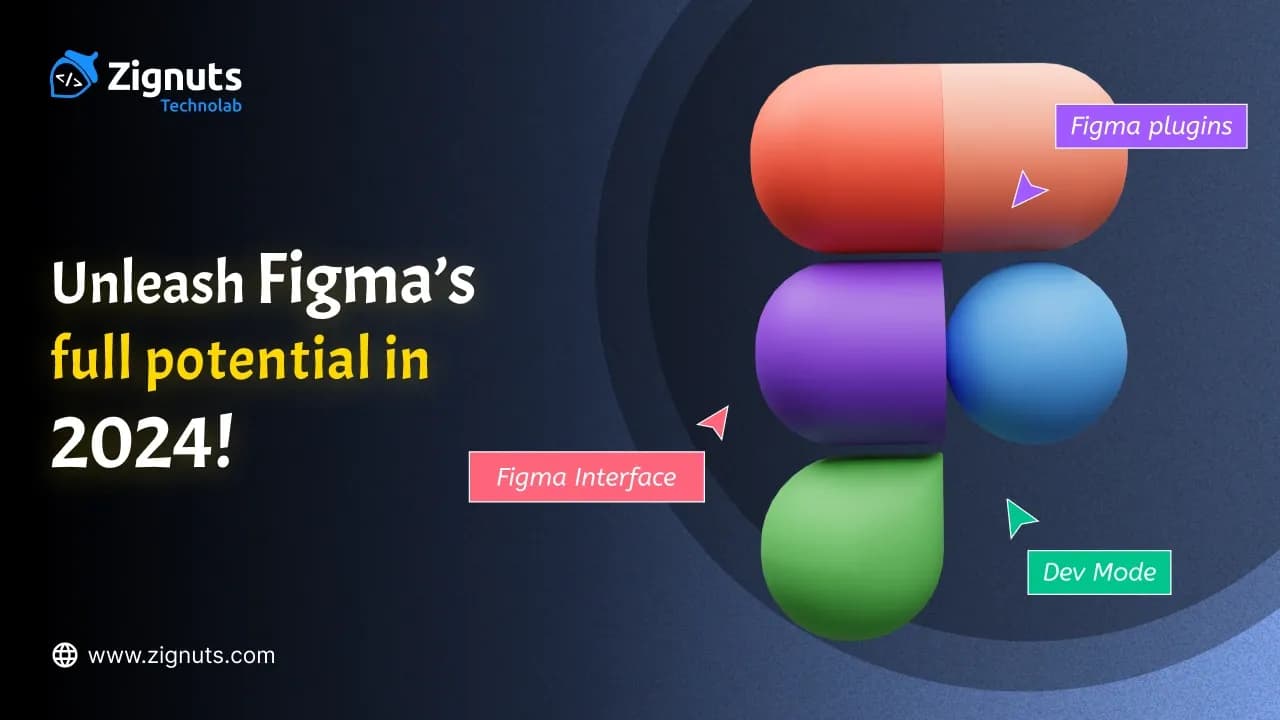
Figma has fundamentally redefined the way product teams bridge the gap between imagination and reality. In 2026, it stands as more than just a design tool; it is an intelligent, multi-dimensional ecosystem where creativity meets technical precision. This guide explores the sophisticated advancements of the platform, focusing on its hyper-collaborative nature, AI-augmented workflows, and the deep integration of the evolved Dev Mode.
The latest version introduces "Contextual Intelligence," where the canvas actually understands the intent behind your layers. With the full rollout of Figma AI, teams are now moving from manual pixel-pushing to high-level orchestration, utilizing generative tools for rapid prototyping and automated design system maintenance. This shift allows for "Vibe Coding" workflows where designs are translated into production-ready code almost instantly. Whether you are a veteran architect of design systems or a newcomer stepping into the canvas for the first time, these insights will help you master the most fluid and powerful version of Figma yet.
Overview about Figma 2026
The current era of Figma is defined by "Contextual Collaboration." It is no longer just about seeing multiple cursors on a screen; it is about an environment that anticipates team needs. Real-time co-authoring has become more immersive, allowing designers, stakeholders, and engineers to move from initial ideation to high-fidelity logic without leaving the canvas.
Figma now functions as a unified spatial OS for digital products. From generative brainstorming in FigJam to complex logic-based prototyping, the platform offers a seamless transition between phases of the lifecycle. Accessibility remains a core pillar, with the web-based architecture delivering desktop-class performance across all operating systems, ensuring that your entire global team stays synchronized regardless of their hardware.
Key Advancements in the Figma 2026 Ecosystem
- AI-Driven Workspace Customization:
The interface now utilizes "Contextual Intelligence" to adapt its toolsets based on your current task. Whether you are building a design system or wireframing a user flow, Figma surfaces the most relevant properties and plugins automatically.
- System-as-Product Mindset:
Figma has moved beyond static libraries. The 2026 update emphasizes variable-driven logic that mirrors production code, allowing designers to manage complex multi-brand systems with unprecedented precision.
- Integrated Multi-Channel Design:
The platform now features smart variant adaptation, where AI helps generate responsive versions for mobile, tablet, and desktop simultaneously, maintaining brand consistency across all platforms.
- Logic-Based Prototyping:
Prototyping has evolved from simple transitions to complex, data-driven experiences. Designers can now bind prototypes to real backend variables, creating functional simulations that look and feel like the final product.
- Unified Productivity Suite:
With the deep integration of Figma Slides and Figma Make, the tool now covers everything from initial stakeholder pitches to generative UI drafts, making it the central hub for the entire product development lifecycle.
Figma 2026 Structure
The architecture of your workspace is the backbone of a scalable design system. Figma organises work through a logical hierarchy that balances high-level oversight with granular control. In 2026, this structure has shifted from a mere storage system to a sophisticated infrastructure that mirrors production environments, ensuring that as your organisation grows, your assets remain discoverable, secure, and logically mapped.

- Organisations:
The top-level umbrella is designed for enterprise-grade management. This tier handles global security protocols, cross-team analytics, and centralised billing. In the 2026 version, Organizations also manage shared workspaces that can span multiple brands, providing a unified oversight for large-scale digital portfolios.
- Workspaces:
A relatively new structural layer for Enterprise users, allowing for the grouping of multiple teams under specific business units or departments. This helps in segregating resources and administrative controls while maintaining a connection to the parent Organization.
- Teams:
Functional groups where the day-to-day collaboration happens. Teams are often organised by product squads or specialised departments like "Core Systems" or "Marketing Creative." This is where shared libraries are typically published and managed.
- Projects:
These act as focused folders to house related workstreams or specific product features. Projects allow for granular permission settings, ensuring that only the relevant contributors have access to sensitive early-stage concepts.
- Files and Libraries:
The actual canvases where design execution occurs. Libraries serve as the centralised repositories for design tokens, components, and variables. In 2026, the industry standard is the "System-as-Product" approach, where libraries are treated as living codebases that sync directly with developer repositories.
- Pages and Layers:
The internal filing system of a document. Pages are now commonly used to separate the lifecycle of a design, such as "Research," "Work in Progress," and "Production Ready." Layers remain the most granular level, utilising AI-driven auto-naming to keep the internal framework of every screen clean and easy for developers to parse.
Advanced Structural Frameworks
Modern teams in 2026 are moving away from chaotic canvases toward modular structures. By organising files based on user flows or independent feature modules rather than just page lists, teams reduce cognitive load. This approach ensures that every project follows a predictable "Routing" logic, making it easier for new designers and engineers to navigate complex enterprise systems without getting lost in the "ghost layers" of the past.
Landing on files in Figma 2026
From login: What can we find here?

The home dashboard has evolved into a personalized command center. Upon logging in, an AI-driven "Recents" gallery prioritizes the files you interact with most frequently. The search functionality has been upgraded with semantic understanding, meaning you can find components or projects based on their description or purpose, not just their specific name. Whether you are starting with a blank slate or deploying a sophisticated multi-device template, the entry point is designed to reduce friction and get you into the "flow" state immediately.
- AI-Powered "For You" Feed:
Much like a social media feed, Figma now suggests design system components, relevant community files, and project updates based on your recent activity and team contributions.
- Integrated To-Do Lists:
A new sidebar widget tracks tasks assigned to you across multiple files, allowing you to jump directly into the frame where feedback or a requested change is located.
- Semantic Search & Visual Matching:
Beyond keywords, you can now search by uploading an image or drawing a rough sketch. Figma will find similar designs within your organization’s library to prevent redrawing existing assets.
- Live Workspace Previews:
Hovering over a project folder provides a 3D-like "exploded view" of the files inside, allowing you to peek at the progress without officially opening the document.
- Organization-Level Governance Hub:
For enterprise users, the dashboard includes a health check for design systems, showing which libraries need updates or have high detachment rates.
From URL: Where can you land?

Figma’s deep-linking capabilities are now more precise than ever. A single URL can drop a collaborator onto a specific pixel, a specific state of a component, or a live interactive prototype flow. This surgical precision eliminates the "Where am I supposed to look?" fatigue often found in large-scale design files.
- Contextual Landing States:
You can now generate URLs that preserve specific "View Settings," such as landing with the Grid turned on, Dev Mode active, or a specific variable mode (like Dark Mode) pre-selected.
- Deep Links to Component Variations:
URLs can point directly to a specific variant within a component set, ensuring that stakeholders see the exact button state or card layout you are referencing.
- Logic-Flow Entry Points:
For complex prototypes, a URL can be set to start the user at a specific point in a logic flow with pre-filled mock data, bypassing the initial login or onboarding screens.
- Branch-Specific URLs:
When working on design iterations, you can share a link to a specific branch. This allows collaborators to review experimental changes without risk of entering the "Main" production file.
- Embeddable Project Links:
Figma URLs are now natively optimized for embedding into external documentation tools like Notion or Jira, providing a live-updating window into the design directly within your project management suite.
Figma 2026 Interface
The interface is a masterclass in "progressive disclosure," showing you exactly what you need when you need it. In 2026, the workspace has been refined to minimize visual noise while maximizing precision. The sidebar panels provide a clear map of your creative territory, while the canvas remains an infinite playground for execution, now featuring floating, context-aware toolbars that disappear when not in use.

Pages panel
Documents are no longer limited to static views. The pages panel allows for the creation of distinct environments within one file. You can have a dedicated page for "Sandboxing," one for "User Testing," and another for "Production-Ready Assets." Each page supports its own independent prototype logic, making it easier to manage complex applications without clutter.
- Contextual Page States:
Pages can now be tagged with statuses like "Draft," "In Review," or "Approved," which automatically updates the permissions for stakeholders viewing the file.
- Canvas Branching:
You can create "mini-branches" within a single page, allowing you to iterate on a specific flow without duplicating the entire page structure.
- Smart Page Summaries:
A new AI-driven overview provides a thumbnail gallery of every screen on a page, making it easier to jump to specific sections in massive documents.
- Independent Variable Modes:
Different pages can be set to different variable modes (e.g., one page for iOS and another for Android) while pulling from the same core component library.
Layers panel
The layers panel provides a visual tree of every element on your canvas. In the current version, the panel uses smart iconography to help you distinguish between Boolean groups, nested components, and auto-layout frames at a glance. It acts as the "table of contents" for your visual story, allowing for quick reordering and logical grouping.

- AI-Powered Layer Naming:
Figma now offers a "Rename with AI" feature that scans your selection and suggests descriptive names (e.g., "Primary Navigation Bar" instead of "Frame 402") based on the elements contained within.
- Layer Search and Filtering:
You can filter the layers panel by type, state, or even by layers that have pending comments or unresolved feedback.
- Component-Level Focus:
Double-clicking a layer in the panel now enters a "focus mode," dimming everything else on the canvas so you can work on complex, deeply nested groups without distraction.
- Visual Diffing:
The layers panel highlights which elements have changed in the most recent version, using subtle color coding to show additions, deletions, or style modifications.
Exporting Assets
Handing over assets is no longer a manual chore. Figma supports a vast array of formats, including modern web standards like WebP and AVIF, alongside traditional PNGs, SVGs, and PDFs. With bulk export and automated naming conventions, designers can package an entire design system’s worth of icons and images in seconds.
- Auto-Generated Asset Packages:
Using "Export Profiles," you can set one-click exports that generate all necessary scales (@1x, @2x, @3x) and formats simultaneously for different platforms.
- Variable-Aware Exports:
When exporting, you can choose to include variable data, allowing developers to see the design tokens associated with colors and spacing directly in the file metadata.
- Lossless WebP/AVIF Support:
These modern formats are now natively optimized, significantly reducing file sizes for web projects without sacrificing visual clarity.
- Background Export Processing:
Large exports now run in the background, allowing you to continue designing while Figma packages your assets in the cloud.
Prototype panel
Prototyping in 2026 feels indistinguishable from a finished app. The panel allows for conditional logic, variables, and advanced expressions. You can now simulate real-world data inputs and complex "if-this-then-that" scenarios, allowing stakeholders to experience the true functionality of a product before a single line of production code is written.
- Expression-Based Interactions:
You can now perform math, string manipulation, and logical checks within an interaction. For example, a "Total Price" text layer can update in real-time as a user adds items to a cart.
- Multi-Action Triggers:
A single click can now trigger a sequence of events, such as changing a variable, navigating to a new frame, and playing a haptic vibration for mobile testing.
- Hardware API Access:
Prototypes can now request access to device features like the camera, accelerometer, or GPS for hyper-realistic testing of location-aware or AR applications.
- Dynamic Media Integration:
Native support for video and animated Lottie files within prototypes allows for high-fidelity micro-interactions that mirror the final engineering implementation.
Toolbar: Available functions for viewers in Figma 2026
The toolbar in 2026 is no longer a static row of icons; it is an adaptive interface that transforms based on your specific role and active task. For viewers and stakeholders, the UI enters a "Review Optimized" state, prioritizing observation, measurement, and feedback tools while tucking away complex design utilities to maximize the visible canvas area.

- Contextual Action Menu:
Viewers now have access to a "Quick Actions" hub that surfaces the most common non-editing tasks, such as generating a summary of changes since the last visit or triggering a prototype walkthrough.
- AI-Powered Navigation:
A new "Focus" tool allows viewers to ask the interface to "Show me the latest login screen updates," and the toolbar will automatically navigate the canvas and zoom to the relevant frame.
- Integrated Presentation Controls:
Viewers can switch between "Canvas View" and "Presentation Mode" with a single click in the center of the toolbar, maintaining their exact position and zoom level during the transition.
- Handoff Shortcuts:
For team members with specific "Dev Seat" roles, the toolbar provides one-touch access to the Inspect panel and the new Annotation library without needing to switch to a separate workspace.
Commenting
Communication is woven into the fabric of the canvas. Commenting mode allows for threaded discussions tied to specific coordinates or elements. With @mentions, integrated video clips, and emoji reactions, the feedback loop is fast and expressive. This eliminates the need for long email chains or external messaging apps to explain design decisions.
- Video and Voice Memos:
Sometimes text isn't enough to explain a complex animation. In 2026, you can record a 30-second video or voice clip directly within a comment bubble to provide nuanced feedback.
- AI Feedback Summaries:
For files with hundreds of comments, a new "Summarize" button uses AI to group feedback into logical categories like Typography tweaks or Logic errors, providing a clean to-do list for designers.
- Smart Thread Priority:
Comments from key stakeholders or those tagged with "Blocking" are visually prioritized on the canvas, ensuring that critical issues are addressed first.
- Cross-Platform Sync:
Comments made in Figma now sync bi-directionally with project management tools like Jira, Slack, and Google Chat, allowing stakeholders to respond to feedback without even opening the Figma file.
- Resolved History Tracking:
Even after a comment is resolved, it remains searchable in a "History" tab, allowing teams to revisit past decisions and the reasoning behind them.
Sharing
The sharing model follows a sophisticated permissions hierarchy. You can share at the Team level for broad access or use specific "view-only" links for external clients. Permissions are granular, ensuring that sensitive IP remains protected while still allowing for the open exchange of ideas.
- Timed Access Links:
You can now generate share links that automatically expire after a set duration (e.g., 24 hours or 7 days), perfect for external contractors or one-time presentations.
- Password-Protected Public Links:
For highly sensitive prototypes, designers can add an extra layer of security with unique passwords for public URLs, even on non-Enterprise plans.
- Role-Specific Landing Pages:
When sharing a link, you can choose if the recipient lands in Design Mode, Dev Mode, or the Prototype player, ensuring they see the file in the most relevant context for their role.
- Advanced "Copy-Proof" Mode:
Admins can now disable the ability for viewers to "Inspect" or "Copy Assets" on specific files, providing a more secure way to share work with competitors or external partners during pitches.
- Workspace-Wide Governance:
Large organizations can now set global sharing defaults at the Workspace level, ensuring

Figma 2026 Dev Mode
An impressive enhancement within Figma's repertoire is the evolution of Dev Mode, which in 2026 functions as a high-fidelity bridge between creative intent and production-ready implementation. This dedicated workspace is tailored specifically to the requirements of engineers, providing a simplified pathway to access deep design data, logic, and component architecture. Activating the Dev Mode toggle swiftly transforms Figma's interface, allowing developers to concentrate on elements primed for implementation without the clutter of the design playground. With upgraded functionalities like AI-augmented inspection, the Dev Mode MCP Server, and advanced version diffing, it effectively closes the gap between design and development.
In Dev Mode, developers gain the following advantages:
- Efficient navigation through designs:
Dev Mode empowers developers to swiftly traverse design files using the "Ready for Dev" view. In 2026, this is enhanced by Focus View, which isolates a single design task to provide a clutter-free interface for deep work.
- Seamless integration with developer tools:
Developers can enhance their workflow by integrating Dev Mode with their preferred environments. The introduction of the Dev Mode MCP (Model Context Protocol) Server allows design context to be pulled directly into agentic coding tools like VS Code and Cursor, aligning AI-generated code with the local codebase.
- Tracking design alterations and monitoring status:
With Dev Mode, developers can effortlessly monitor changes using the Compare Changes feature, which highlights shifts in pixels, colors, or CSS properties. By maintaining oversight of design status via real-time webhooks (such as the Figma for Jira integration), teams can mitigate the risk of miscommunication and technical debt.
For designers, mastering the use of Dev Mode in Figma offers several benefits:
- Enhance the design workflow:
Dev Mode simplifies the task of structuring the expansive canvas. Designers can now use Sections and "Ready for Dev" tags to organize work logically, ensuring a seamless handoff that mirrors the final product structure.
- Streamline file preparation:
Effective utilization of Annotations by designers enables developers to grasp designs comprehensively. These smart annotations in 2026 are machine-readable, allowing AI tools to interpret accessibility notes and functional requirements without manual redlining.
- Promote design-code harmony:
Dev Mode fosters communication by aligning teams with a common language. By consolidating the source of truth through Code Connect, designers and developers can ensure that the UI components in Figma match the real code components in production repositories.

Navigation panel
The navigation panel in Dev Mode is crafted to aid developers in seamlessly identifying components ready for development. In 2026, it serves as a project management hub within the file. Within the navigation panel in Dev Mode, you'll find:
- A designated section for elements marked as "Ready for dev."
- Thumbnails and status indicators representing each screen have been prepared for implementation.
- A collapsed view for objects on the canvas is not yet finalized, keeping the workspace focused.
- Focus View provides access to drill down into specific frames without visual noise.
Toggle

Inspect panel

- Identify development-ready sections: The Dev Mode icon signifies pages containing sections marked "Ready for dev." These designated sections are conveniently listed under "Ready for development" in the Dev Mode navigation panel.
- Track frame editing history: The last edit timestamp of a frame is visible beneath the frame's name in the navigation panel.
- Efficiently navigate frames and layers: In Design Mode, designers or users can organize related content into sections and designate sections as ready for development. Dev Mode prioritizes content within these sections. Content outside of sections remains visible in the left sidebar but is initially collapsed.

- Compare design changes:
If updates occur, the "Compare changes" link opens a modal to visually diff the current version against previous iterations, including impact analysis on generated code.
- Add external links and resources:
Both roles can attach links to GitHub, Jira, and Storybook. In 2026, these resources propagate through component instances, ensuring documentation is always one click away.
- Build faster with customizable code snippets:
The Code section generates snippets in React, Swift, Kotlin, or CSS Grid. These snippets now recognize Design Tokens and Variables, applying your team's specific naming conventions automatically.
- Component Playground:
Select a component to test its variations and properties in an isolated "sandbox" state before writing a single line of code.
- View applied styles and variables:
View the exact variable bindings for colors, spacing, and even gradients, ensuring pixel-perfect alignment with the design system.
- Download assets:
Dev Mode automatically detects icons and images, offering them in formats like WebP, SVG, and AVIF. Developers can toggle off automatic detection for manual inspection of vector paths.
- Export:
Apply export settings to layers to define formats (PNG, JPG, SVG, PDF) and scale factors to meet specific platform requirements.
Figma 2026 Plugins
Figma plugins expand the platform's capabilitiThe plugin ecosystem is the "app store" for design productivity. In 2026, plugins are more deeply integrated, often appearing as contextual utilities that pop up exactly when they can be of use. From AI-powered content generators that fill your designs with realistic data to accessibility checkers that verify color contrast in real-time, plugins allow teams to customize Figma to their specific niche. For those with unique needs, the robust API allows for the creation of internal tools that automate repetitive tasks and enforce brand standards.es, providing developers with additional tools to optimize their workflow. These plugins can improve the inspection process by offering relevant contextual information necessary for implementation. They also offer customization options for Figma's code generation, allowing developers to generate code that may not be supported natively. The Figma plugin ecosystem is continuously expanding, and users have the opportunity to create their own plugins using Figma's developer resources.

The Rise of Generative and Intelligence Plugins
In 2026, the standard for plugins has shifted from simple automation to "GenAI Orchestration." Tools like UX Pilot and Musho now allow designers to generate entire high-fidelity screen layouts from a single prompt, which can then be refined manually.
- Content Realism:
Plugins such as Content Reel and TinyFaces have evolved to pull live, diverse data sets, including AI-generated avatars and localized copy, directly into your mockups, ensuring that stakeholders see a "living" version of the product rather than static placeholders.
- Semantic Design Linting:
Modern linting plugins like Design Lint now utilize semantic understanding to ensure every hex code and spacing value is attached to a specific design system variable, flagging "hard-coded" values as bugs before they ever reach Dev Mode.
Bridging the Design-to-Production Gap
The 2026 plugin landscape features a heavy emphasis on "shipping" rather than just "showing."
- Native Animation Tools:
With plugins like Figmotion and LottieFiles, designers can create production-ready vector animations and micro-interactions directly within Figma, exporting them as JSON or CSS without needing external motion software.
- Design-to-Code Engines:
Powerful engines like Locofy Lightning and Builder.io now use AI to map Figma layers directly to existing code components in your GitHub repository. This ensures that the generated React, Vue, or Tailwind code isn't just a "guess," but a reflection of your actual production environment.
- The MCP Server Integration:
Advanced plugins now support the Model Context Protocol (MCP), allowing your Figma design tokens and component logic to be streamed directly into AI-driven IDEs like Cursor or VS Code, enabling developers to code with the full context of the design system.
Workflow and System Governance
As design systems grow in complexity, "Ops" plugins have become essential for maintaining file health and team alignment.
- Automated File Organization:
Plugins like Super Tidy and OrganizeFile now handle the "janitorial" work of design, automatically aligning frames to a grid, batch-renaming layers based on their content, and deleting "ghost layers" that bloat file performance.
- Accessibility-First Design:
Tools like Stark and A11y have moved beyond simple contrast checks. They now offer focus-order visualization and color-blindness simulations that are active in real-time, helping teams catch inclusivity issues at the start of the design phase rather than during QA.
- Instance and Token Auditing:
Instance Finder and Token Master allow system architects to track component detachment rates and variable usage across thousands of files, providing the data needed to govern and scale enterprise design systems effectively.
Figma 2026 Tips
To truly master the platform, you must embrace its most powerful automation features. In 2026, Figma has shifted from static assets to a logic-first environment, requiring a more strategic approach to how you build and maintain your designs.
Design Tokens and Variables:
Move beyond static colors. Use variables to handle light/dark modes and multi-brand themes effortlessly. In 2026, variables now support the full Design Tokens W3C spec, allowing you to store complex data like percentages for opacity, milliseconds for motion, and even typography strings. Utilizing a "Primitive to Semantic" aliasing strategy ensures that updating a single brand font or primary color cascades through thousands of files instantly.
Advanced Auto Layout:
Think of this as "Flexbox for Designers." Master wrapping, min/max dimensions, and gap variables to create truly responsive layouts. The 2026 update introduced Auto Layout Grid, which allows you to create bento-box and dashboard layouts that reflow based on container width without manual repositioning. Always set your parent frames to "Wrap" to ensure your UI adapts naturally to mobile, tablet, and ultra-wide screens.
Component Sets and Variants:
Build smart components that reduce the number of items in your library while increasing their flexibility. Utilize Component Properties (Boolean, Text, and Instance Swap) to minimize the "variant explosion" problem. For 2026, the introduction of Native Slots allows you to build modular "base" components where users can drop in custom content without detaching the instance, preserving the link to your design system.
Interactive Components:
Create micro-interactions (like hovering buttons or toggling switches) once at the component level so they work everywhere automatically. This "set it and forget it" approach saves hours of prototyping time. Use the Change To action with integrated easing and spring physics to give your prototypes a high-fidelity, app-like feel that mirrors final production code.
AI-Powered Layer Management:
Stop wasting time on manual organization. Use the Figma AI "Rename Layers" feature to contextually name your frames and elements in bulk. This ensures that your file structure is clean and professional before it reaches the development handoff, improving searchability and reducing technical debt.
Logical Prototyping with Expressions:
Take your prototypes to the next level by using Expressions and Math. You can now create variables that calculate values, such as a shopping cart total that updates as items are added, allowing you to test real-world logic and data-driven user flows without writing a single line of code.
Visual Search for System Governance:
Before creating a new component, use the Visual Search tool to scan your existing library. This feature allows you to upload a screenshot or select a layer to find visually similar components, preventing the duplication of assets and keeping your design system lean and efficient.
Conclusion
Figma 2026 has officially bridged the gap between visual storytelling and functional engineering. By leveraging the spatial hierarchy of the workspace, the precision of the new Dev Mode, and the intelligence of AI-augmented plugins, teams can now deliver products with unprecedented speed and accuracy. However, mastering these tools is only half the battle; the true potential lies in the hands of the experts who use them. To ensure your digital products stay ahead of the curve, it is vital to Hire UI/UX Designers who are fluent in these advanced 2026 workflows.
Whether you are looking to scale your design system or build a complex interactive prototype, the right expertise makes all the difference. At Zignuts, we specialize in turning these advanced Figma capabilities into tangible business results.
Ready to elevate your digital experience? Contact Zignuts today to collaborate with our expert design team and unlock the full potential of Figma 2026 for your next project.

Zignuts Technolab
Zignuts Technolab delivers future-ready tech solutions and keeps you updated with the latest innovations through our blogs. Read, learn, and share!